 Merchant Lensv0.3.3
See the merchant category behind a transaction.
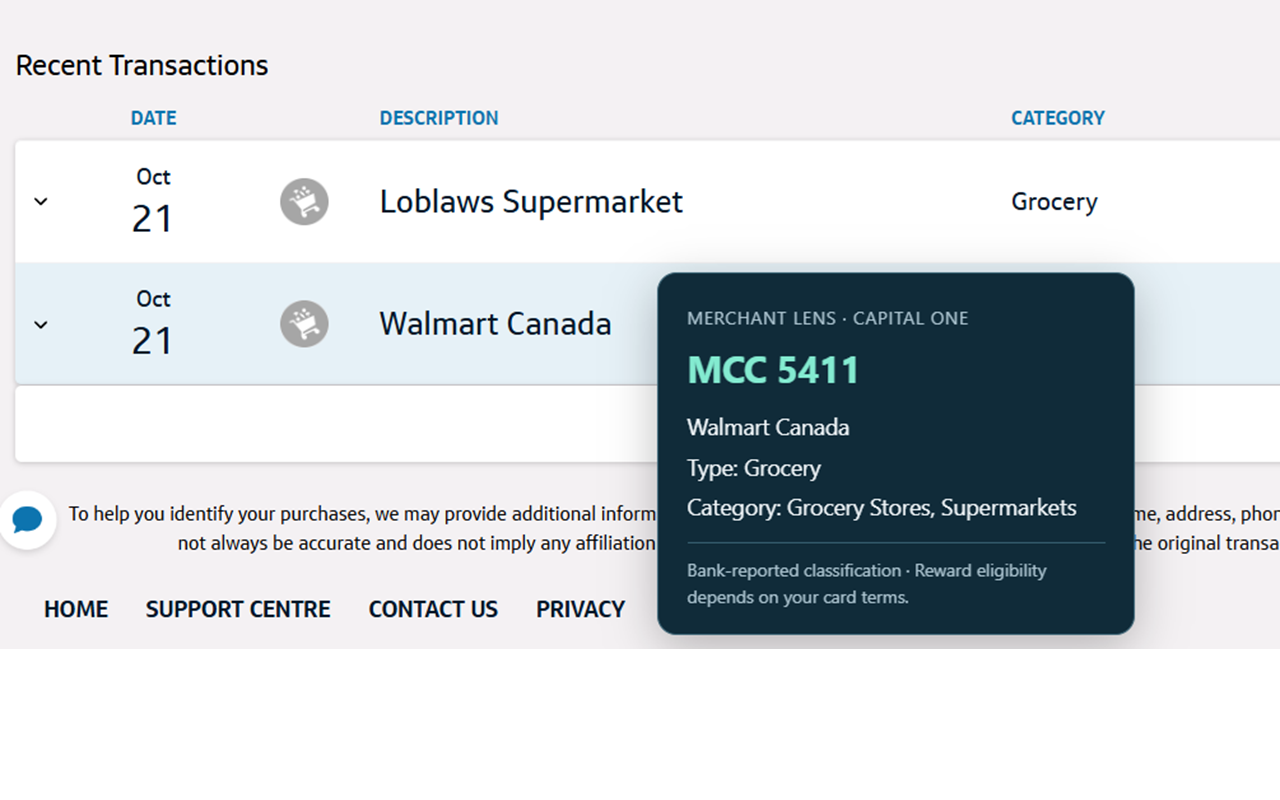
Hover over a transaction to see its bank-reported merchant category code (MCC), type and category description. For Chrome and Microsoft Edge.
Supported: Capital One Canada and Rogers Bank, using English transaction pages.
Install Merchant Lens
Free · Available on the Chrome Web Store · Works in Chrome and Microsoft Edge.
Install from Chrome Web StoreStore installation includes automatic updates. Developer mode is not required.
Source code and manual ZIP download
For source inspection or manual installation: download the v0.3.3 ZIP. The ZIP contains the complete, readable source and matches the original v0.3.3 store package. Unpacked installations require Developer mode and manual updates.
Open the extracted files in a text editor. Start with manifest.json for permissions, capture.js for response observation, core.js for transaction matching, and content.js for tooltips. background.js handles toggles; options.js provides settings.
Or read the source files online. A checksum helps confirm you received this exact file; it is not a security certification.
SHA-256:f3c24b6ea00325354c08af386a27a16adef9551fc674e550256d7e3ef967c430
Install in Chrome or Edge
- Open Merchant Lens in the Chrome Web Store using the browser where you want to install it.
- In Chrome, choose Add to Chrome. In Edge, choose the option to add or get the extension. If Edge asks, allow extensions from other stores.
- Review the requested website access, then confirm Add extension.
- Open the browser's Extensions menu and pin Merchant Lens if you want its icon on the toolbar.
- Sign in to your bank normally, open its transaction page, and refresh that page once. Hover over a transaction for about 300 milliseconds.
Install separately in each browser. Managed work or school browsers may restrict extension installation.
Already using the unpacked beta?
- Open
chrome://extensionsin Chrome oredge://extensionsin Edge. - Remove the unpacked Merchant Lens beta before installing the store version. This avoids running two copies at once.
- Install from the store link above, pin the new icon if desired, and refresh any open bank tabs.
The beta does not automatically switch to the store version. Your enabled/disabled preference may reset; transaction data is not migrated.
Using Merchant Lens
- Click the toolbar icon or press Alt+Shift+M to turn tooltips on or off. Green means on; grey with OFF means off.
- The bank must have supplied an MCC for the transaction. Payments and some pending transactions may not have one.
- If nothing appears, refresh the transaction page or load the relevant date range. Right-click the extension icon and open Extension options to check captured-record counts.
- If the shortcut is already assigned elsewhere, change it at
chrome://extensions/shortcutsoredge://extensions/shortcuts.
MCCs come from the bank. Reward eligibility depends on your card's terms; Merchant Lens does not calculate or guarantee rewards.
Privacy, in plain language
The extension observes transaction responses your bank page already receives and matches them to the displayed rows. It makes no additional banking requests and does not upload transactions. There are no analytics, advertisements or remotely loaded application scripts.
Matching metadata stays in the bank tab's memory under a 30-minute expiry policy. Depending on the bank, it includes merchant, amount, dates, MCC/category, status, card last four digits and cardholder name when supplied. Only the enabled/disabled preference is saved in local extension storage.
Turning tooltips off leaves the temporary observer and cache active so you can turn them back on without refreshing. To stop the extension completely, disable it in the browser and refresh or close bank tabs.
Read the full privacy policy, including cache limits and this website's Cloudflare hosting disclosure.
Updates and removal
Installations from the Chrome Web Store receive updates through the browser. If you still use an unpacked copy, updates remain manual; remove it and install the store version to receive automatic updates.
To uninstall at any time, open chrome://extensions or edge://extensions, choose Remove on Merchant Lens, and close or refresh your bank tabs. If you previously used the beta, you can delete its extracted folder after removing that copy.